
What Is Google Analytics 4 and Why Proper Setup Matters
Google Analytics 4 is Google’s free tool for measuring traffic and user behavior on your website. If you run a business and have a website, you need GA4. It is not optional — it is the foundation on which every marketing, SEO, advertising, and content decision should be built.
The problem is that GA4 works in a fundamentally different way from its predecessor, Universal Analytics, which Google retired in July 2023. Many businesses installed GA4 in a hurry but never configured it properly, which means they are now making decisions based on incomplete or outright incorrect data.
In this tutorial I will walk you through how to set up GA4 correctly from scratch, which events and conversions you should measure, and which reports to check every week so that every decision is backed by real numbers instead of guesswork.
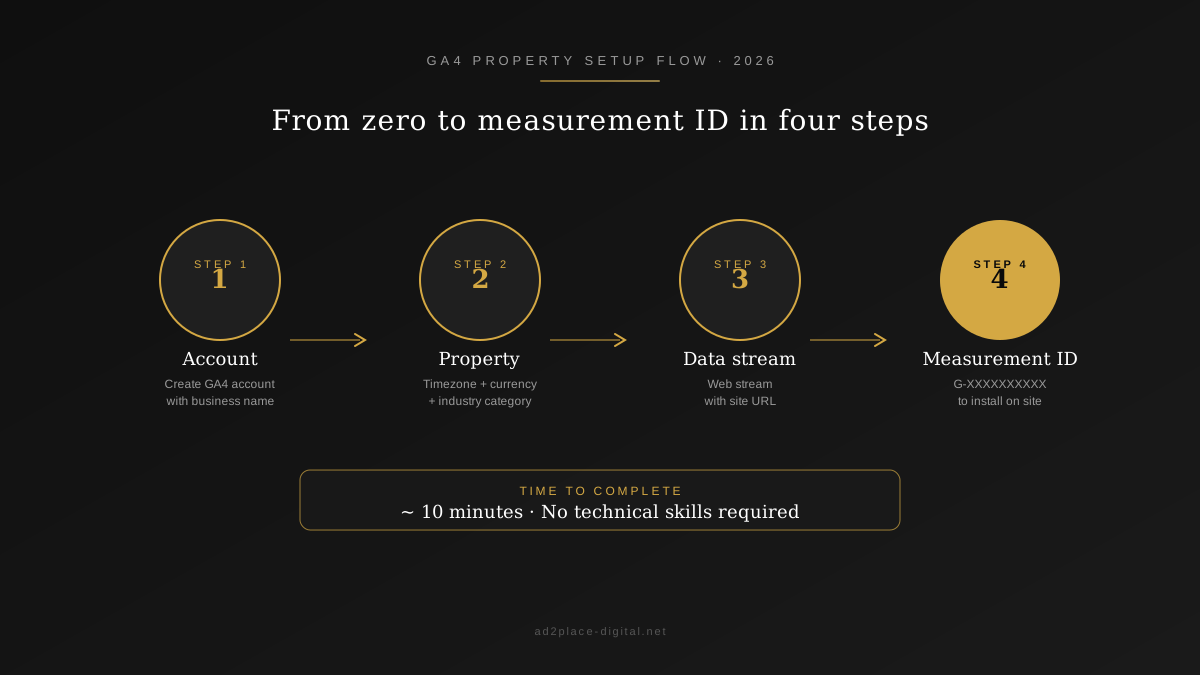
Step 1: Create Your GA4 Property the Right Way
If You Already Have a Google Analytics Account
- Go to analytics.google.com
- In the bottom-left corner click Admin (gear icon)
- In the Property column click + Create Property
- Fill in:
- Name: your website name (e.g., “My Barcelona Studio”)
- Time zone: select your local zone
- Currency: Euro (EUR) or your local currency
- Click Next and select your business category and size
- Click Create
If You Do Not Have a Google Analytics Account Yet
- Go to analytics.google.com and sign in with your Google email
- Create an account (your company name) and then a property (your website name)
- Set up the web data stream: enter your website URL and name the stream
- GA4 will generate a Measurement ID like
G-XXXXXXXXXX
That Measurement ID is the key. You need it to install GA4 on your site.
Step 2: Install GA4 on Your Website
Option A: Direct Code (gtag.js)
If you want the simplest approach, paste this code before the closing </head> tag on every page of your website:
<script async src="https://www.googletagmanager.com/gtag/js?id=G-XXXXXXXXXX"></script>
<script>
  window.dataLayer = window.dataLayer || [];
  function gtag(){dataLayer.push(arguments);}
  gtag('js', new Date());
  gtag('config', 'G-XXXXXXXXXX');
</script>
Replace G-XXXXXXXXXX with your actual Measurement ID.
Option B: Google Tag Manager (Recommended)
If you already use Google Tag Manager — or plan to — the installation is cleaner and more flexible:
- In GTM, create a new Tag with type Google Tag
- Enter your Measurement ID
G-XXXXXXXXXX - Set the trigger to All Pages
- Publish the container
My recommendation: if your website has contact forms, CTAs, scroll tracking, or any interaction beyond basic pageviews, install GTM. It will save you hours of manual coding down the road.
Verify It Works
- Open your website in a browser tab
- In GA4 go to Reports → Realtime
- You should see your own active visit (1 user)
- If nothing shows after 2 minutes, check that the code is installed correctly (Inspect → search for
gtagorgoogletagmanagerin the source)
Step 3: Configure Consent Mode (GDPR Compliance)
This is mandatory in the EU and the UK. Without a cookie banner properly integrated with GA4 you risk fines under GDPR and ePrivacy regulations. GA4 has a built-in system called Consent Mode that works like this:
- Before the user accepts cookies, GA4 sends anonymized, cookieless data
- When the user consents, GA4 activates full tracking with cookies
Default configuration:
gtag('consent', 'default', {
  'analytics_storage': 'denied',
  'ad_storage': 'denied',
  'wait_for_update': 500
});
When the user accepts cookies:
gtag('consent', 'update', {
  'analytics_storage': 'granted',
  'ad_storage': 'granted'
});
If you use a CMP (Consent Management Platform) like Cookiebot, Complianz, or CookieYes, the integration with GA4 is usually automatic or requires just a couple of clicks.
Key insight from practice: Consent Mode v2, which became mandatory in March 2024 for EU advertisers, actually provides more data than the old binary approach because Google models conversions from users who decline cookies. You get better data while staying compliant.
Step 4: Understand GA4 Events
This is where GA4 diverges from everything that came before. In GA4, everything is an event. There is no “pageview” as the central metric — there are events that record every interaction.
Automatic Events (Collected Without Any Setup)
GA4 collects these events automatically as soon as you install the tracking code:
page_view— every time a page loadssession_start— beginning of a sessionfirst_visit— user’s very first visituser_engagement— user is actively interacting
Enhanced Measurement Events (Enable Them)
In GA4 go to Admin → Data Streams → your stream → Enhanced Measurement and enable:
- Scroll — triggers when the user scrolls to 90% of the page
- Outbound clicks — clicks on external links
- Site search — if you have an internal search bar
- Video engagement — play, progress, complete
- File downloads — PDFs, ZIPs, etc.
Enable all of them. They are free and require no additional code.
Custom Events (The Ones You Actually Need)
To track contact form submissions, CTA clicks, add-to-cart actions, and similar interactions you need custom events. These are configured through Google Tag Manager.
Example — tracking contact form submissions:
- In GTM, create a Trigger with type Form Submission and filter by the form URL or ID
- Create a Tag with type GA4 Event and name the event
form_submit - Add parameters:
form_name: "contact",page_url: {{Page URL}} - Publish
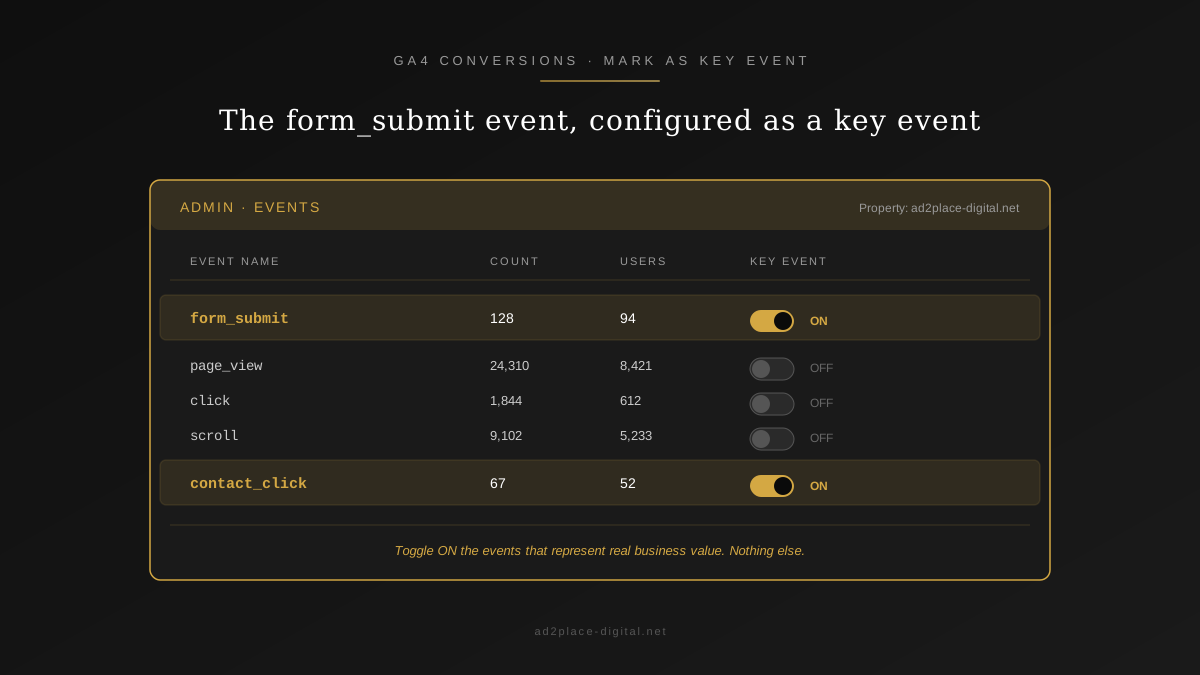
Now every form submission records a form_submit event in GA4 that you can mark as a conversion.
Step 5: Set Up Conversions (Key Events)
Conversions — recently rebranded as “Key Events” in the GA4 interface — are the events that represent business objectives. For a typical SMB, conversions include:
- Contact form submission → event
form_submit - Phone call click → event
click_phone - Email click → event
click_email - Purchase (ecommerce) → event
purchase - Quote request → event
request_quote
To mark an event as a conversion:
- GA4 → Admin → Events
- Find the event you want (e.g.,
form_submit) - Toggle Mark as key event
Critical point: you can have up to 30 active conversions in free GA4. Most SMBs need between 3 and 5. Do not mark everything as a conversion — only the events that represent a real business outcome. A page_view is not a conversion. A form_submit is.
Step 6: The 5 Reports Every Small Business Should Review Weekly
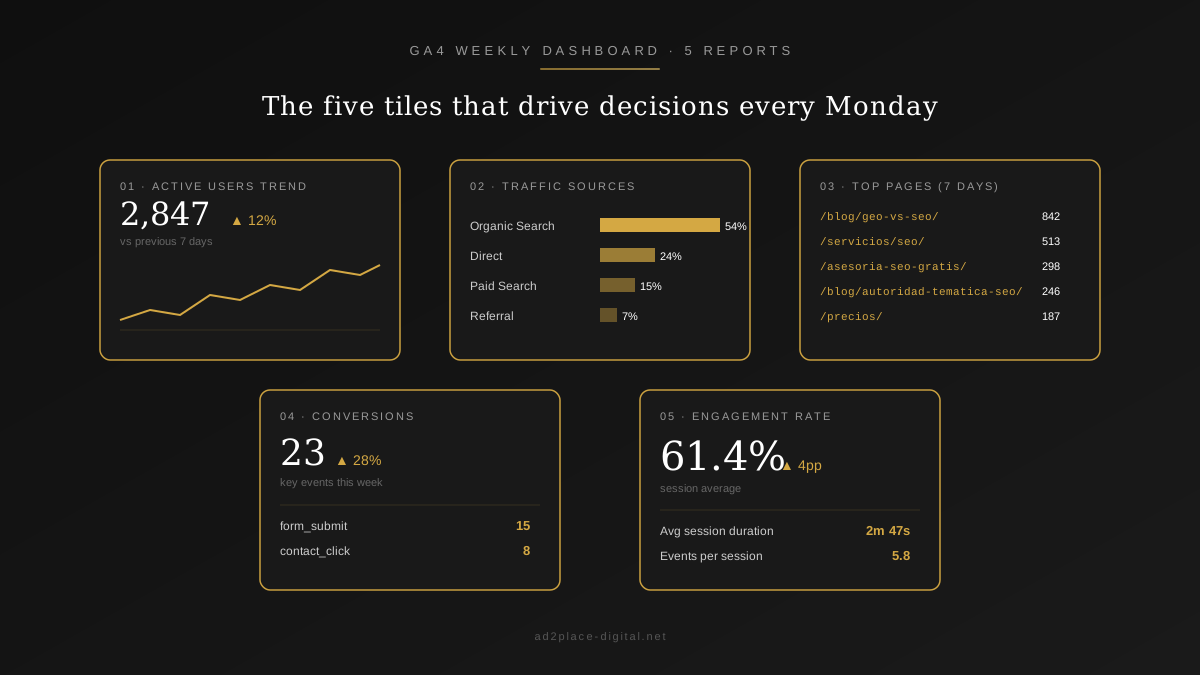
You do not need a data science degree to get value from GA4. These are the 5 reports I recommend reviewing every Monday morning — 15 minutes maximum:
1. Active Users and Sessions
Where: Reports → Acquisition → Overview
Look at: Users (how many distinct people visited your site) and Sessions (how many times they came). If the trend is upward week over week, your content strategy and SEO are working. If it is declining, investigate why.
2. Traffic Sources
Where: Reports → Acquisition → Traffic acquisition
Look at: where your visitors come from. The main sources are:
- Organic Search — Google traffic (your SEO)
- Direct — people who type your URL directly
- Paid Search — your Google Ads campaigns
- Social — social media
- Referral — other websites linking to you
If your SEO is working, Organic Search should represent over 40% of total traffic. If it is below that, your positioning strategy needs attention.
3. Most Viewed Pages
Where: Reports → Engagement → Pages and screens
Look at: which pages receive the most traffic. Are they the pages you want? Does your services page get visits, or only the blog? If conversion pages (contact, pricing, services) have very few views, there is a navigation flow problem.
4. Conversions
Where: Reports → Engagement → Conversions
Look at: how many conversions happen each week and what type. If you have forms, phone clicks, and quote requests set up as conversions, you can see exactly how many leads your website generates. If you have traffic but no conversions, the problem is the website itself, not the SEO — read our guide on how much a professional website costs to understand why.
5. Engagement Rate
Where: Reports → Engagement → Overview
Look at: the engagement rate (engaged sessions ratio). This is the metric that replaced bounce rate. It measures the percentage of sessions where the user did something active: scroll, click, view for more than 10 seconds. A healthy engagement rate is above 60%. If yours is below 40%, visitors are landing and leaving without doing anything — the site is not connecting.
Step 7: Connect GA4 with Google Ads and Search Console
GA4 + Google Ads
If you run Google Ads campaigns, connecting GA4 lets you:
- See which campaigns generate real conversions, not just clicks
- Import GA4 conversions into Google Ads to optimize bidding strategies
- Create remarketing audiences based on actual on-site behavior
To connect: GA4 → Admin → Product links → Google Ads → select your account → Link.
GA4 + Search Console
Connecting Search Console lets you see which Google search queries drive traffic to your site, directly inside GA4. It is the perfect combination for measuring SEO performance.
To connect: GA4 → Admin → Product links → Search Console → select your property → Link.
Once connected, a new report appears in GA4: Acquisition → Search Console → Queries. There you can see the exact keywords Google shows your site for, along with impressions, clicks, CTR, and average position. If you want to learn how to interpret this data in depth, the complete SEO audit guide walks you through the entire process.
Step 8: Build Custom Reports with Explorations
GA4 has a powerful Explorations tool (Explore in the left menu) that lets you build custom reports. It is more powerful than standard reports and allows you to answer very specific business questions.
Useful Report: Conversion Funnel
- Go to Explore → Funnel exploration
- Define the steps:
- Step 1:
page_view(arrives at the site) - Step 2:
scroll(scrolls down the page) - Step 3:
clickon CTA (clicks the contact button) - Step 4:
form_submit(submits the form)
- Step 1:
- GA4 visually shows you how many users reach each step and where they drop off
This funnel tells you exactly where you are losing potential customers. If 80% drop off between step 2 and step 3, the problem is your CTA. If the drop happens between step 3 and step 4, the problem is the form itself.
Useful Report: Landing Page Performance
- Go to Explore → Free form
- Add dimensions: Landing page, Session source/medium
- Add metrics: Sessions, Engagement rate, Conversions, Average engagement time
- Sort by Sessions descending
This report shows you which entry points work and which ones bleed visitors. If your highest-traffic landing page has a 25% engagement rate, you are wasting money driving people to a page that does not convert.
Common Mistakes When Setting Up GA4
1. Not Filtering Internal Traffic
If you and your team visit the site constantly, your visits inflate the data and distort every metric. Filter internal traffic:
- GA4 → Admin → Data Streams → your stream → More tagging settings → Define internal traffic
- Add your office or home IP address
- GA4 → Admin → Data settings → Data filters → activate the filter
2. Marking Too Many Events as Conversions
If everything is a conversion, nothing is a conversion. Limit yourself to 3-5 conversions that represent real business outcomes. page_view is NOT a conversion. form_submit is.
3. Not Configuring Consent Mode
Without Consent Mode, GA4 either collects no data at all (if the user declines cookies) or collects data illegally (if you never ask for consent). Both options are bad. Configure Consent Mode from day one.
4. Ignoring the Engagement Rate
Many businesses only check “visits.” Visits without engagement are vanity metrics. The engagement rate is the metric that tells you whether your site actually works or just receives bots and bounces.
5. Not Linking Search Console
Without Search Console linked, you cannot see the keywords driving traffic. It is like driving without a speedometer. The linking process takes 5 minutes and gives you SEO data directly in GA4.
6. Using Default Channel Groupings Without Verifying
GA4 sometimes misclassifies traffic sources. Paid social might show up as organic, email campaigns without UTM parameters land in “direct,” and referral traffic from obscure sources gets lumped into “unassigned.” Always verify your channel groupings match reality, and use UTM parameters on every campaign link.
How We Use GA4 at Ad2Place
At Ad2Place we configure GA4 for every SEO and Google Ads project we manage. Every client gets a custom dashboard that includes:
- Weekly conversions by source (organic vs paid vs social)
- Full conversion funnel (visit → CTA → form → lead)
- Search Console keywords with monthly trend
- Current month vs previous month comparison
- Cost per lead by channel (when running paid campaigns)
We do not work with vanity metrics. Every optimization decision is backed by verifiable GA4 data. If you want us to set up GA4 correctly on your site — or if you suspect your current installation is not measuring accurately — request a free consultation of 30 minutes. We will review your setup, identify issues, and give you a concrete action plan.
GA4 and the Future: What Changes in 2026
GA4 is not a static platform. Google rolls out updates every quarter, and 2026 has already brought significant changes:
AI-powered insights are now front and center. GA4’s automated insights have improved dramatically, surfacing anomalies in traffic and conversions that used to require manual analysis. The “Insights” card on your Home screen is worth checking weekly.
Audience building has become more powerful. Predictive audiences — such as “likely to purchase in the next 7 days” or “likely to churn” — now work with smaller data sets than before. Even SMBs with moderate traffic can leverage these for remarketing.
Attribution model changes. Google has moved towards data-driven attribution as the default, which distributes conversion credit across all touchpoints rather than giving 100% credit to the last click. This gives a more honest picture of which channels actually contribute to conversions.
Privacy-first measurement. With third-party cookie deprecation now in effect in Chrome, GA4’s modeling capabilities have become essential. Sites with Consent Mode properly configured recover up to 70% of the conversion data that would otherwise be lost.
Staying current with GA4 updates is not about chasing features — it is about making sure the data you base decisions on is accurate. A professional SEO audit includes reviewing your analytics setup to ensure nothing falls through the cracks.
Frequently Asked Questions About Google Analytics 4
Is Google Analytics 4 free?
Yes. Google Analytics 4 is completely free for the vast majority of websites. A paid version (Analytics 360) exists for enterprises with more than 10 million monthly events, but 99% of small businesses will never need it.
What is the difference between Universal Analytics and GA4?
Universal Analytics tracked sessions and pageviews. GA4 tracks events: every user interaction is an event. This enables much more granular tracking. GA4 also works without third-party cookies, includes AI-powered predictive reports, and unifies web and app data into one property.
How do I set up conversions in GA4?
In GA4, any event can become a conversion. Go to Admin → Events, find the event (e.g., form_submit) and toggle it as a Key Event. You can have up to 30 active conversions in the free version.
Do I need Google Tag Manager to use GA4?
Not strictly, but it is highly recommended. GTM lets you set up custom events without touching your website code. For any tracking beyond basic pageviews, GTM is practically essential.
How long does it take for GA4 to show data?
Real-time data appears instantly. Standard reports take 24 to 48 hours. Exploration reports can take up to 72 hours.
Which GA4 metrics should a small business check every week?
The 5 essentials: active users, engagement rate, conversions, traffic sources, and most viewed pages. Reviewing them every Monday (15 minutes) gives you a clear snapshot of weekly performance.
Next Step: Get GA4 Set Up Properly
If after reading this guide you want a professional to configure GA4 on your site without errors — or if you already have it installed but suspect it is not measuring correctly — request a free consultation of 30 minutes. We review your installation, identify problems, and deliver a concrete action plan.
And if you already measure well but want those numbers to translate into more traffic and more customers, take a look at our SEO services and Google Ads management where we use GA4 as the foundation of every decision.