
What Are Core Web Vitals and Why They Matter
Core Web Vitals are a set of metrics that Google uses to measure the real user experience on a web page. These aren’t abstract or theoretical metrics — they reflect how real people who visit your site actually experience it.
Since 2021, Google has included them as a ranking factor. In 2026, with the consolidation of INP (Interaction to Next Paint) as the official metric since March 2024, these three metrics are more relevant than ever for your organic rankings.
The three current metrics are:
- LCP (Largest Contentful Paint): Measures perceived loading speed. How long it takes for the largest visible content element to render on screen.
- INP (Interaction to Next Paint): Measures responsiveness. How long the page takes to visually react to a user interaction.
- CLS (Cumulative Layout Shift): Measures visual stability. How many unexpected layout shifts occur during page load and usage.
According to Chrome UX Report data from late 2025, only 42% of websites pass all three Core Web Vitals thresholds simultaneously. This means more than half of all websites are delivering a suboptimal experience and potentially losing rankings because of it.
How to Measure Core Web Vitals Correctly
Before you optimize, you need to measure. And you need to understand the difference between two types of data:
Field Data
These are real measurements from users visiting your site. Google collects them through Chrome and aggregates them in the Chrome UX Report (CrUX). These are the data Google uses to evaluate your site for ranking purposes.
They’re assessed at the 75th percentile: your score reflects the experience of 75% of your users. If 75% of your visitors have an LCP under 2.5 seconds, you pass that metric.
Where to see them:
- Google Search Console > Core Web Vitals: An overview of all your pages grouped by status.
- PageSpeed Insights: Field data for individual URLs (if they have enough traffic).
- CrUX Dashboard (Looker Studio): For historical analysis and trends.
Lab Data
These are simulated measurements in a controlled environment. They don’t reflect real user experience, but they’re extremely useful for diagnosing problems and verifying improvements before deploying them.
Where to get them:
- Lighthouse (built into Chrome DevTools).
- PageSpeed Insights (lab section).
- WebPageTest (for deeper analysis with network waterfall).
Important: A common mistake is optimizing only for lab data and assuming field data will improve automatically. That’s not always the case. Field data depends on the actual devices, connections, and behaviors of your audience.
LCP: Largest Contentful Paint
What It Is and How It Works
LCP measures how long it takes for the largest visible content element in the viewport (the visible part of the screen) to render. It can be an image, a text block, a video, or an SVG element.
Thresholds:
- Good: Under 2.5 seconds.
- Needs improvement: Between 2.5 and 4 seconds.
- Poor: Over 4 seconds.
The 4 Main Causes of Slow LCP
1. Slow Server Response Time (TTFB)
If your server takes more than 600 milliseconds to respond, it’s virtually impossible to have a good LCP. Common causes include low-quality shared hosting, unoptimized databases, and missing cache layers.
Solutions:
- Migrate to higher-performance hosting or use a CDN like Cloudflare.
- Implement server-level caching (Varnish, Redis, full-page cache).
- Optimize database queries and enable object caching.
2. Render-Blocking CSS and JavaScript
The browser can’t paint anything until it has processed all critical CSS files. If you load heavy stylesheets or render-blocking JavaScript, LCP gets delayed.
Solutions:
- Extract and inline critical CSS (above-the-fold) directly into the HTML.
- Load non-critical CSS files asynchronously.
- Add
deferorasyncto scripts that aren’t essential for the initial render. - Remove unused CSS and JavaScript. On many sites, over 50% of loaded CSS isn’t used on the page.
3. Slow Resource Loading (Images, Fonts)
If the LCP element is an image (which is the most common case), you need to make sure it loads as quickly as possible.
Solutions:
- Use modern formats like WebP or AVIF. They can reduce file size by 30-50% compared to JPEG.
- Implement
fetchpriority="high"on the LCP image to tell the browser to prioritize it. - Use
preloadfor critical resources:<link rel="preload" as="image" href="hero.webp">. - Don’t apply
loading="lazy"to the LCP image. Lazy loading is for below-the-fold images. - Always define
widthandheighton images so the browser can reserve space.
4. Client-Side Rendering
SPA (Single Page Applications) that rely on JavaScript to render initial content tend to have poor LCP because the browser needs to download, parse, and execute JavaScript before showing anything.
Solutions:
- Use SSR (Server-Side Rendering) or SSG (Static Site Generation) to generate HTML on the server.
- Implement partial hydration to reduce the amount of JavaScript needed on initial load.
- Frameworks like Astro, Next.js, or Nuxt offer these capabilities out of the box.
INP: Interaction to Next Paint
What It Is and How It Works
INP (Interaction to Next Paint) officially replaced FID (First Input Delay) in March 2024. While FID only measured the first interaction, INP evaluates all user interactions throughout the entire session and reports the highest latency (with statistical adjustments to avoid outliers).
An “interaction” includes clicks, screen taps, and keyboard presses. Scrolling is not considered an interaction for INP.
Thresholds:
- Good: Under 200 milliseconds.
- Needs improvement: Between 200 and 500 milliseconds.
- Poor: Over 500 milliseconds.
Why INP Is More Demanding Than FID
FID only measured the delay before the browser started processing the interaction. INP measures the complete cycle: from the moment the user interacts until the browser paints the visual update on screen. This includes:
- Input delay: The time the interaction waits in the queue because the main thread is busy.
- Processing time: The time it takes for event handlers to execute.
- Presentation delay: The time it takes the browser to calculate the layout and paint the visual update.
According to web.dev data, when the switch from FID to INP occurred, many sites that passed with FID failed with INP. The reason is that INP is a much more representative metric of the actual user experience.
How to Improve INP
1. Reduce Main Thread Work
Heavy JavaScript is the number one enemy of INP. Every millisecond the main thread is busy executing JavaScript is a millisecond the user waits to see the response to their interaction.
Solutions:
- Break long tasks (Long Tasks) into smaller ones using
scheduler.yield()orsetTimeout. - Remove unnecessary third-party scripts. Every widget, tracker, or chat you add competes for the main thread.
- Use Web Workers to move heavy computations off the main thread.
2. Optimize Event Handlers
If the code that runs when the user clicks is slow, INP will be poor regardless of everything else.
Solutions:
- Avoid unnecessary DOM manipulations in event handlers.
- Use
requestAnimationFrameto separate business logic from visual updates. - Implement debounce or throttle on frequent interactions like scroll or resize.
3. Minimize DOM Size
An excessively large DOM slows down all layout and paint operations. Google recommends the DOM shouldn’t exceed 1,400 nodes.
Solutions:
- Implement virtualization for long lists (only render visible elements).
- Simplify the HTML structure by removing unnecessary wrappers.
- Load content sections on demand when they become relevant.
4. Reduce the Impact of Third-Party Scripts
Analytics, live chats, tracking pixels, social media widgets — every third-party script you add to your site has a cost in INP.
In my experience, 40-60% of the JavaScript executed by an average website comes from third-party scripts. Audit all the scripts you load and remove those that don’t provide clear value.
Solutions:
- Load non-essential scripts with
deferor dynamically after user interaction. - Use facades for heavy widgets: show a static image of the chat or map and load the real widget only when the user interacts.
- Implement a “JavaScript budget” policy: define a maximum KB limit for JS and don’t exceed it.
CLS: Cumulative Layout Shift
What It Is and How It Works
CLS measures how much the visible content of the page unexpectedly moves. Those moments when you’re reading an article and suddenly the text jumps because an image loaded above it, or you’re about to click a button and a banner appears that shifts everything.
Thresholds:
- Good: Below 0.1.
- Needs improvement: Between 0.1 and 0.25.
- Poor: Above 0.25.
CLS is calculated by multiplying the impact fraction (what percentage of the viewport shifts) by the distance fraction (how far it shifts). A value of 0 means there are no unexpected movements.
The Most Common Causes of High CLS
1. Images and Videos Without Defined Dimensions
This is the most frequent error and the easiest to fix. If you don’t define width and height on your <img> and <video> elements, the browser can’t reserve space before loading the resource.
Solution: Always define dimensions for your images. With modern CSS, you can use aspect-ratio to maintain proportions without setting fixed sizes:
img {
  width: 100%;
  height: auto;
  aspect-ratio: 16 / 9;
}
2. Ads, Embeds, and Dynamically Injected Content
Ad banners are one of the main causes of CLS on the web. They load after the main content and push everything else down.
Solution: Reserve fixed space for ad blocks using containers with a defined minimum height. If you don’t know the exact height, use the most common ad dimension as a minimum.
3. Web Fonts Causing FOUT (Flash of Unstyled Text)
When a web font loads and replaces the system font, it can cause a layout shift if both fonts have different metrics.
Solutions:
- Use
font-display: optionalto completely avoid FOUT (the web font is only used if already cached). - Use
font-display: swapwithsize-adjustso the fallback font has the same metrics as the web font. - Preload your most important fonts:
<link rel="preload" as="font" href="font.woff2" crossorigin>.
4. Injected Content Without Reserved Space
Cookie banners, notification bars, and conditionally rendered elements can displace content if they’re inserted into the document flow.
Solution: Use position: fixed or position: sticky for dynamically appearing elements so they don’t push the rest of the content. Cookie banners, for example, should always be fixed at the bottom of the screen.
Tools for Diagnosis and Monitoring
For Point-in-Time Diagnosis
- Chrome DevTools > Performance: Record a loading session and analyze exactly what’s causing issues. You can see the main thread task timeline, layout shifts, and LCP events.
- Lighthouse: A complete audit with specific recommendations. Run in “Mobile” mode with throttling to simulate real conditions.
- WebPageTest: Deeper analysis with network waterfalls, load filmstrips, and URL comparisons.
For Continuous Monitoring
- Google Search Console: Core Web Vitals panel with field data grouped by status. The best place to see the big picture.
- CrUX Dashboard: Historical reports with Looker Studio to track trends over time.
- RUM (Real User Monitoring) tools: If you need more granular data, tools like web-vitals.js let you collect real user metrics and send them to your analytics system.
Action Plan: Prioritize Correctly
When all three Core Web Vitals need improvement, it’s important to prioritize. Based on my experience, this is the order I recommend:
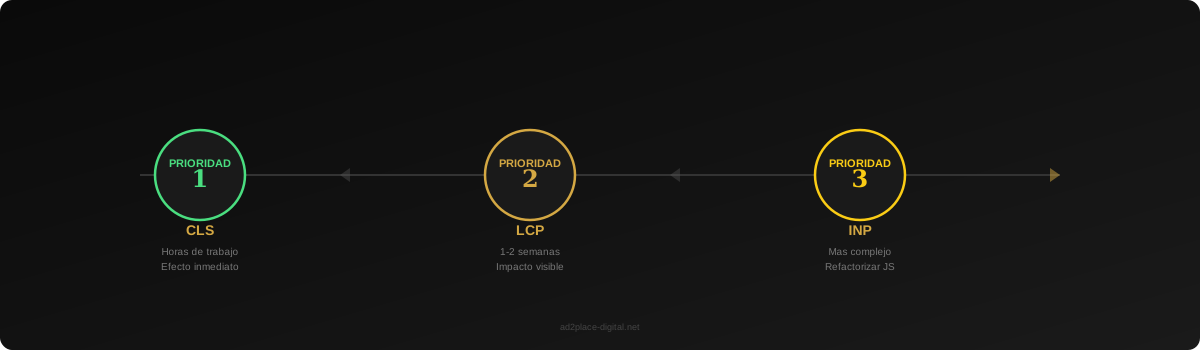
Priority 1: CLS
It’s the fastest metric to improve in most cases. Adding dimensions to images, reserving space for ads, and correctly configuring web fonts are changes that can be implemented in hours with immediate results.
Priority 2: LCP
LCP changes (image optimization, caching, preload) typically show visible impact within 1-2 weeks once CrUX accumulates enough new data.
Priority 3: INP
It’s the most complex metric to improve because it generally requires refactoring JavaScript. Start by identifying the slowest interactions with Chrome DevTools and address long tasks one at a time.
Real Impact on SEO
Core Web Vitals are a ranking factor, but it’s worth being realistic about their weight. They’re not the most important factor. Relevant content, backlinks, and domain authority still carry more weight for most queries.
However, in closely competitive situations, Core Web Vitals can be the differentiating factor. If two pages have similar quality content and comparable link profiles, Google will favor the one offering a better user experience.
Additionally, Core Web Vitals indirectly affect other SEO metrics. A fast, stable website has:
- Lower bounce rate (users don’t leave frustrated by slowness).
- Longer session duration (they browse more pages and read more content).
- Higher conversion rate (according to Google, for every second of improvement in load speed, conversions can increase by up to 27%).
Improve Your Website’s Experience
If your Core Web Vitals are in the red or yellow and you don’t know where to start, we can help. With our web design and development service we build sites optimized for performance from the ground up, and with our SEO service we ensure the technical side of your site doesn’t hold back your rankings.
Request a free consultation and we’ll analyze the current state of your Core Web Vitals with a concrete improvement plan.